
Using Daywright
A little help getting started.
Capture a to-do, choose a time that fits, and keep track of where you leave off. This guide covers the Apple edition for iPhone and iPad. Android development is underway; its setup and feature guide will follow. Compare platform availability.
Set up your day
In Settings → Included calendars, choose the device calendars Daywright can read. Manage calendar accounts, including Google accounts, through device Settings; this build has no direct Google sign-in.
Under Planning, set Day starts, Day ends, and Time before commitments. New planning days default to 6 am–9 pm; you can choose your own hours. These settings define the hours and buffer used to find openings. They do not move calendar events.
Calendar access is optional. Without it, Free now uses the time you state and your Daywright placements. Read any coverage or refresh notice before relying on an opening.
Use Daywright on iPad
Daywright supports iPhone with iOS 17 or later and iPad with iPadOS 17 or later. On iPad, rotate between portrait and landscape or resize the app window. Home shows calendar and task cards side by side when there is enough space, and uses a single column in narrower windows or with accessibility text sizes.
Add and edit to-dos with the on-screen keyboard or a connected keyboard. Use the editor’s Add, Save, and Cancel controls. Rotating while you edit keeps the draft open. Daywright uses one app window at a time.
Each device keeps its own local task list. Build 56 has no iCloud task sync or Watch companion. Choose included device calendars separately on each device.
Add a to-do
Tap Add to-do, enter a title and a rough Estimated time, then tap Add. You can leave the task flexible until you know when you want to do it.
Open More details for Schedule, Deadline or target, Availability, Priority, Notes, and Place. Firm deadline is a due date; Aim for is a target. Availability limits when the task can be suggested. Work context can also limit suggestions to before a shift or a day off. Tap outside a text field to dismiss the keyboard.
My important task raises its priority when it fits. You can have one important task at a time; firm deadlines take precedence.
To capture from another app, share text or a link, choose Daywright, and tap Save draft. Open Daywright to review it before tapping Add. Cancel keeps the shared draft for later. Links saved in Notes stay as text; Daywright does not fetch their pages.
Find something for the time you have
This time-fit tool requires Plus; Free still supports manual scheduling.
Open Free now and choose 5, 10, 15, 30, 45, or 60 minutes. Review Tasks that fit and tap Use this time to schedule your choice privately in Daywright.
Not now skips a suggestion for this session. Show other tasks offers more choices. Leave this time free closes the view without scheduling anything.
If a current commitment finishes early, Current commitments ended early makes its remaining time available for this search. Future events remain protected, and the source calendar stays unchanged.
Plan ahead and repeat
In More details → Schedule, select Choose a time and set the start. In Calendar, switch between Month and Week to browse dates. Below the calendar, Day shows the selected day’s events, tasks, shifts, and openings. Week shows seven expandable days: tap one to reveal its schedule in place, then tap again to collapse it. Tap the date on Home to open the calendar in Week; the Calendar tab returns to your saved browsing preference and today.
A scheduled task can repeat daily, weekly, or monthly. Each occurrence has its own completion status. Edit this occurrence changes one date; Edit this and later occurrences changes the schedule from that point onward.
After completion works differently: choose an interval, finish the task, and it returns to your flexible list when due and you open Daywright. Missed returns do not pile up as duplicate tasks.
Choose a task Reminder and allow Scheduled task reminders in Settings for an alert before its scheduled start. A reminder time that has already passed does not send a late alert. Open Daywright regularly to keep repeating reminders scheduled.
Keep unfinished work moving
Creating progress/waiting records requires Plus. Saved records stay readable after expiry and Free can make existing waiting tasks ready again.
Open a task and choose Mark done when it is finished. A scheduled time ending, or a Live Activity reaching zero, does not complete it.
Made progress saves a note and an updated estimate of the time remaining. The task returns to your flexible list. If it was already waiting, it stays waiting.
Waiting on something records the reason and an optional follow-up date. Waiting tasks stay out of suggestions until you choose Ready again. Follow-ups appear inside Daywright; they do not send notifications or contact anyone.
Return to flexible list removes a task’s private placement so you can find another time. Its details stay with it.
Plan shifts and track pay
Open Work → Shifts → Add shift to enter a name and scheduled times. Choose a kind, unpaid break, and any optional notes. Templates help with repeated shift details; a rotation lets you review dated shifts before applying them.
Free supports manual shifts; templates, rotations and pay inputs require Plus. Work settings starts with Pay display: Show pay on Daywright Home defaults off. Optional Hide pay amounts uses tap-to-reveal and hides again when you leave the app, not Face ID. New or unset pay-period dates start today; chosen dates are kept. Cadence choices are Weekly, Every 2 weeks, Twice a month and Monthly. Twice a month means the 1st–15th and 16th–last day. Verify rates, time zone and overtime rules before relying on estimates.
Scheduled, worked, and cancelled are separate states. Enter actual start and end times to record a worked shift. Pay separates recorded gross, scheduled estimates, projected adjustments, and manually entered payments. Payments do not mark shifts worked. The estimates are not payroll, tax calculations, or take-home pay.
Saved shifts appear in Calendar, and Home can show a compact next-shift summary. Work data stays local to this device. Older Daywright: Shift installs’ saved data is not imported automatically.
Send a private copy
With Plus, use the To-do page ellipsis to choose a task, or open a saved to-do and choose Send to-do, or open a scheduled shift in Work and choose Send shift. Review the copy and decide whether to Include notes, then choose Create link and send it through an app you choose.
Anyone with the full link can read its selected details while the service permits retrieval. Supported availability and viewing limits are shown before you create a link; service availability is separate. Stopping sharing cannot recall a saved copy. A shift copy includes scheduled times, time zone, kind, and break; it excludes rates, pay, actual worked hours, and payments. The link service stores an encrypted copy. Read the sharing privacy details before sending sensitive information.
The recipient can view the copy in a browser, use Review in Daywright, and review an editable draft before saving. Install the TestFlight beta first if needed, then return to the link. The recipient’s saved copy is independent; changing one copy does not change the other.
Manage sent links in Daywright to copy a link again or stop sharing. Revocation cannot erase screenshots or copies already saved by a recipient. Confirm shift coverage directly with the other person; sharing is not an agreement or a schedule change.
Review the bigger list
Home gives you a view of the near term and work that is ready to do. Open To-do for the broader list. Search titles and notes, use the status filters, or sort by due date, shortest first, title, or newest first.
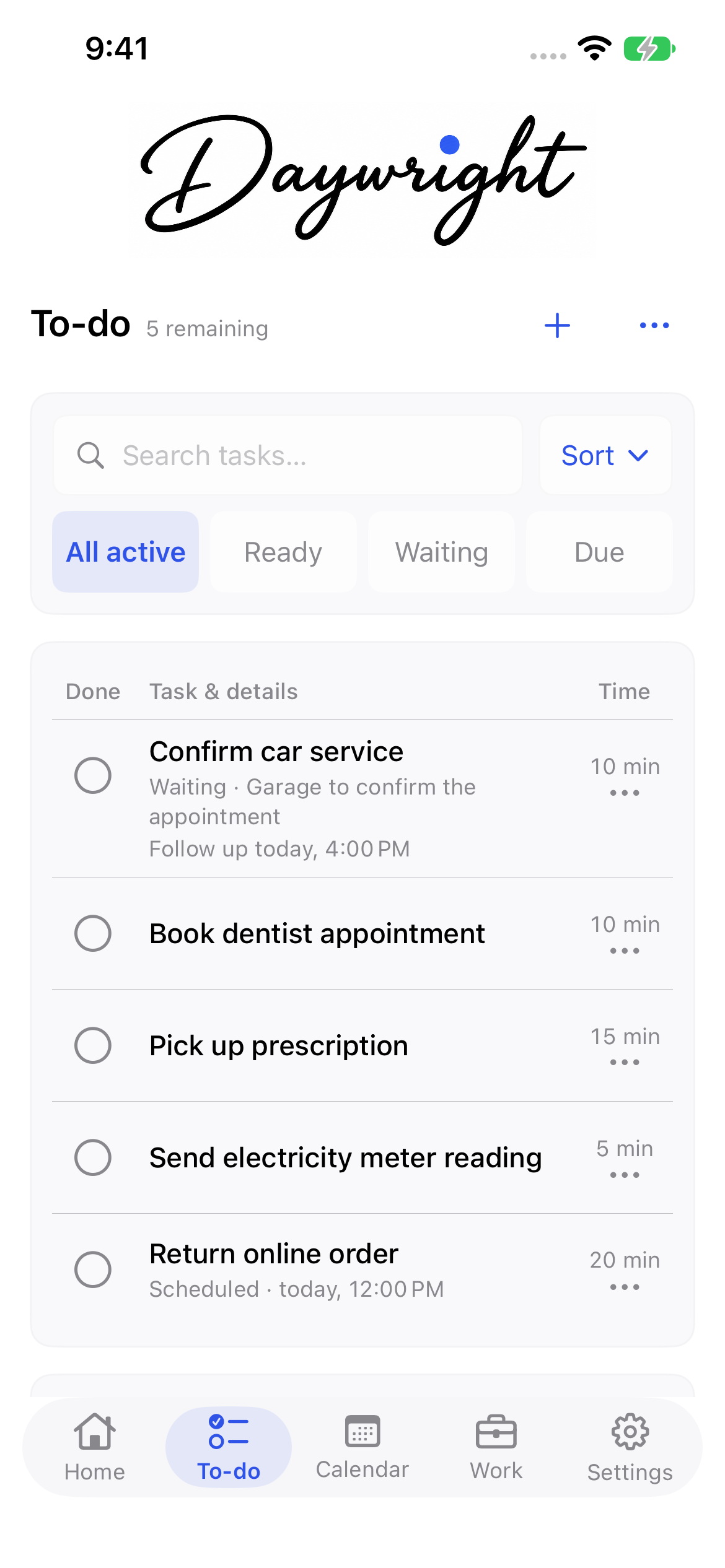
Expand Completed to revisit finished tasks. Open one and choose Mark incomplete if it needs more work.
Use Siri and Shortcuts
Find Daywright’s Add a to-do, Find something to do, and Show today actions in Apple Shortcuts, or ask Siri to use them. Unlock your device when requested.
Add a to-do asks for a title and estimated minutes. It saves immediately by default. Turn on Settings → Siri & Shortcuts → Review before adding to open a draft and save only after tapping Add.
Find something to do uses your available minutes to return choices without scheduling them. Show today returns tasks and, by default, events from your included calendars.
Turn off Include calendar events to leave events out of Show today. Calendars still inform suggestions. Returned information is available to Siri, Shortcuts, and any later actions you connect. Consider what a shortcut might display, speak, or pass on.
Set up widgets and Live Activities
Add a small or medium Home Screen widget, or Daywright’s rectangular Lock Screen widget. Tap a task to open it. Settings → Widgets & Live Activities explains setup and refresh behavior.
Show widget task titles applies to both Home Screen and Lock Screen widgets. Turn it off to show Private task instead. Times and estimates remain visible. Live Activity titles have a separate setting and are hidden by default.
During a task’s scheduled time, Show Live Activity displays the remaining time. Stop Live Activity ends the display and leaves the task scheduled. The system manages widget refreshes, so a widget may lag behind the app.
Add quick controls
On iOS 18 or iPadOS 18 or later, add Add to-do or Free now to Control Center. Open Control Center, touch and hold the background, tap Add a Control, and search for Daywright. While editing, tap a Free now control to choose its duration.
On an iPhone with an Action button, open iPhone Settings → Action Button → Controls and choose a Daywright control. Press and hold the Action button to open it.
Unlock your device to use a control. Add to-do opens a draft; Free now opens suggestions. Nothing is added or scheduled until you choose an action in Daywright. Finish or cancel an existing draft first if one is open. Siri’s Review before adding setting does not change these controls.
Choose your appearance and manage access
Settings → Appearance offers System, Light, or Dark, with Daywright Blue, Sage, Plum, and Amber accents.
Settings → Subscription shows access and purchase options. Free includes five active personal to-dos, basic edits and completion, manual schedules, ordinary repeats/reminders, manual shifts, capture, Siri Add/Show today, widgets and received copies. Plus removes the cap and adds time-fit planning, progress/waiting, Nearby reminders, Work/pay automation, private-link sending and Live Activities. Saved information and Free actions remain usable after expiry. Use the options shown in the app to subscribe or restore a purchase.
Tasks remain local in this build; there is no task sync between devices. Device backup settings may include task data; read the privacy policy for storage and calendar details.
Task storage across devices
Build 56 has no iCloud task sync. Each device keeps its own local list. Device backups are separate; an update does not prove older cloud records were erased.
Apple Watch availability
Build 56 has no Watch companion. Use the iPhone or iPad app, widgets, Siri and Shortcuts for supported workflows.
Find to-dos nearby
Nearby tools and arrival reminders require Plus and appropriate permissions.
In a to-do, open More details → Place. Enter an address or business and choose Search Apple Maps, then select a result. You can also enter coordinates manually. The place is part of the draft until you save the to-do.
Open Nearby to-dos from To-do or Settings. Allow location when asked, then use Refresh location if needed. The list shows saved to-dos within 5 kilometers. For example, save the parcel shop with “Return parcel” so it appears when you are nearby.
For an arrival alert, choose an Arrival radius, turn on Arrival reminder for that to-do, and use Allow arrival reminders. Location and notification permissions are controlled separately on each device. Alerts use the generic text “Nearby to-do available.”
Arrival alerts are delivered by the operating system and may be delayed or unavailable. Follow any limit or permission notice in the app. Saved places are stored with local to-dos; sharing a place in a private link is a separate explicit choice. Apple Maps receives a search only when you submit one.
This guide describes Daywright 0.6.0 (56). Images show fictional examples from an earlier beta; some labels may differ. Purchases, sharing and physical-device reminder workflows remain beta testing targets.
Still need a hand? Get in touch.